Showing posts with label apple. Show all posts

Saturday, November 29, 2014

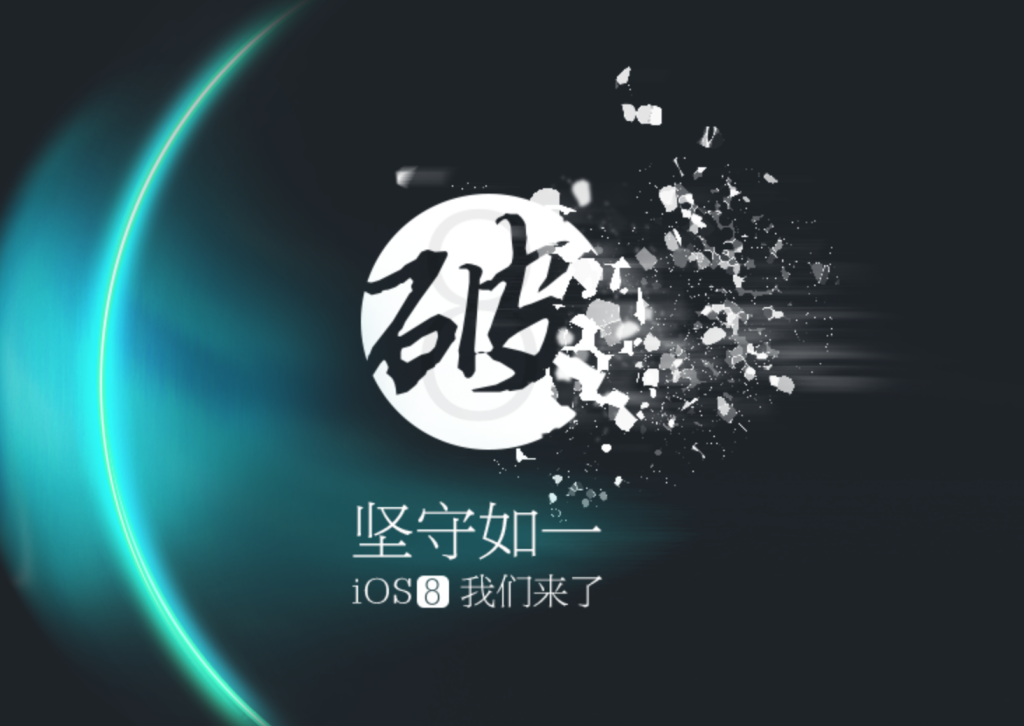
Taig Jailbreak untuk iOS 8.1.1 - iOS 8.2 beta

Taig (Taiji) Jailbreak - Tim (Taiji) Taig baru saja merilis jailbreak iOS 8.1.1 - iOS 8.2 beta untuk perangkat Apple terbaru termasuk iPhone 6 dan iPhone 6 plus. Anda dapat mengunduh Cydia melalui Taig (Taiji) jailbreak. Unduh aplikasi Taig (Taiji) melalui halaman ini.

Taig (Taiji) Jailbreak


TaiG jailbreak kompatibel dengan perangkat apple berikut ini :
  • iPhone 4s, iPhone 5, iPhone 5s, iPhone 5c, iPhone 6, iPhone 6 Plus
  • iPad 4, iPad mini, iPad mini 2, iPad mini 3, iPad, iPad Air, iPad Air 2
  • iPod touch 5G

Tautan unduhan TaiG (updating)


sumber :  [via TaiG.com]

Tuesday, July 15, 2014

Cara Mematikan Musik Otomatis Berbasis Timer di iPhone dan iPad

Musik Timer

Siapa yang suka mendengarkan musik sebelum tidur menggunakan iPhone atau iPad? Nah, bagaimana cara mematikan musik tersebut secara otomatis ketika kamu tidur? Mudah saja, tanpa perlu menginstal aplikasi tambahan kok. Fitur tersebut tersembunyi di aplikasi Clock bawaan perangakat iOS. Mari kita bahas langkah-langkahnya :

  1. Putar lagu favorit kamu menggunakan aplikasi Music.
  2. Sembunyikan aplikasi dengan menekan home button, lalu cari aplikasi Clock.
  3. Buka aplikasi Clock lalu pilih tabTimer di bagian kanan bawah.
  4. Atur waktu yang kamu inginkan, misalkan 2 jam.
  5. Setelah itu tab list When Timer Endslalu pilih Stop Playing. Maksudnya, setelah penghitung waktu mundur berjalan, aplikasi Clock akan menghentikan musik yang sedang diputar. Timer Musik
  6. Sekarang kamu tinggal menekan tombol Start, setelah itu penghitung mundur akan diaktifkan. Timer Musik

Baca Juga: Cara Menghapus Semua Lagu Sekaligus di iPhone


Bagaimana, apakah musik yang diputar benar berhenti ketika Timer yang kamu tentukan selesai? Cara ini sangat membantu untuk menghemat penggunaan baterai perangkat iOS yang biasa kamu gunakan untuk memutar musik di malam hari. Selain itu indra pendengaran kita juga bisa ikut beristirahat dengan lebih baik ketika sudah tertidur.

Selama mencoba ya..!

Monday, July 7, 2014

Cara Mengunduh iOS 8 Beta 3,2,1 untuk iPhone


Antarmuka sistem operasi Apple iOS 8
Sistem operasi mobile terbaru dari Apple, iOS 8 telah dirilis dalam versi beta. Sistem operasi tersebut saat ini menjalani masa uji kualitas dan jaminan tidak ada bug. Anda pun bisa mengunduh dan mencoba iOS 8 beta ini.
Walau pengembangan dalam iOS 8 tidak sebanyak dalam iOS 7, namun masih banyak yang bisa digali dan dipelajari dalam sistem operasi ini, sebelum iPhone terbaru beredar pada akhir tahun ini.
Apple telah mengemas iOS 8 dengan beragam fitur dan 4 ribu antarmuka pemrograman aplikasi yang baru. Selain itu, terdapat juga fitur kesehatan dan kebugaran. Apple juga mengembangkan fitur iCloud dengan menambahkan lebih banyak funsi di dalamnya.
Berikut adalah panduan dalam mengunduh dan mencoba iOS 8, sebagaimana diteerangkan dalam situs Readwrite (2/6/2014).

Monday, June 30, 2014

Tools Jailbreak Pangu Kini Tersedia Untuk OS X dan Berbahasa Inggris

Pangu io

Sudah seminggu berselang sejak dirilisnya tools Jailbreak Pangu dari grup pengembang @PanguTeam. Kini mereka telah merilis pembaruan Pangu ke versi 1.1 dengan beragam perbaikan menarik dan tambahan dukungan. Diataranya adalah menghadirkan Pangu dalam antarmuka berbahasa Inggris dan merilis Pangu untuk perangkat OS X.

Berikut ini daftar lengkap pembaruan Pangu versi 1.1:

  1. Add English support.
  2. Optimize the file size.
  3. Fix the boot loop bug.
  4. Using new info leak bug instead of @i0n1c’s
  5. Add online self verification

Selain mendukung bahasa Inggris dan tersedia untuk perangkat OS X, sang pengembang juga menghadirkan perbaikan untuk masalah boot loop yang terjadi pada beberapa pengguna. Mereka juga menghadirkan laman website Pangu berbahasa Inggris agar lebih familar untuk kamu akses.

Sebagai catatan, kamu tidak perlu melakukan Jailbreak ulang perangkat iOS 7.1 bila tidak menemukan masalah. Segera unduh Pangu bagi kamu yang berminat untuk melakukan Jailbreak dan selamat menikmati berbagai tweakmenarik dari Cydia.

How to add a custom boot logo to your jailbroken iDevice


If you're running any jailbreak on your iOS 7 device(s), whether by way of evasi0n7 or thenewly-released Pangu jailbreak, and you want to apply a custom boot logo to your device, then read on!

You are going to need four things to get this done:

  1. A filesystem-editing application, such as iFunBox
  2. BootGIF, for turning your .gif images into boot-up animations
  3. An iOS 7 device with Apple File Conduit "2"installed on it
  4. A modified version of animate for iOS 7

You can download iFunBox from the download links below:


You can download BootGIF from the download link below:


You will also need to find a .gif image (animated if you want) that you want to use as a boot logo. You can use almost any one that you want, so you can search Google Images, or if you already have one you want to use, you can use that one too.

First up, you're going to want to go on the device that you're wanting to add a boot logo to, and you'll want to add a new repository to your Cydia sources. That repository is:

PHP Code:
http://theirepo.com  
Once added, you'll want to install the "animate" package, which will enable third-party boot logos on your iOS device. The version of animate on this repository has been updated to support iOS 7.0-7.1.1, so that's why you'll be adding this repository and installing this version of animate from this repository. It works with both 32-bit and 64-bit iOS 7 devices, and the animate fix package is not necessary to install after you install this version of animate:


If you don't already have it, you'll also want to install Apple File Conduit "2" on your device so you can access your filesystem over a USB connection (this is available in Cydia's default repository, so there's no need to add another repository for it):


Once your device is ready, you can go ahead and open the BootGIF application on your computer that you downloaded. You will see a "Select GIF" button in the top right-hand corner of the application that you can use to select the .gif image that you want to use as your boot logo, and once you do, your interface should look something like the one below:


You can pick the device that the boot logo will be for so that it will be formatted correctly for your device, you can change the background color to whatever you want, configure the fade, configure the height and width of the image, select the output to where your animated boot logo file will be saved to, and much more, but we'll be leaving these options as the default for this demonstration. You may need to play with these options a few times until you get it right where you like it.

Once finished, you can click on the "Make bootlogo" button to finalize and create your boot logo for your device.

After making your boot logo file, you'll find a new folder at the destination that you configured as your file output (we chose our Desktop). It should appear in a folder named something such as "BL_95667," but the numbers may be different for you. 

You can now plug your iOS device that you have Apple File Conduit "2" and animate installed on into to your computer, and you can open the iFunBox application. It will detect your device, and on the left side of the application, you will want to click on "Raw File System." Now, you will navigate to Library>BootLogos, and you can drag the folder you created (in our case, BL_95667 from our Desktop) into this location:


Now, you can go on your iOS device and go to the Settings application and visit the BootLogo preferences pane and pick the boot logo that you created:


Congratulations! You have now changed your boot logo to something other than a boring little white Apple. You can reboot your device and you'll see the .gif image that you created!

For a video walk-through on changing your boot logo on iOS 7, you can watch our video version of this guide below:


Tuesday, June 24, 2014

Tools Jaibreak iOS 7.1 Resmi Dirilis Untuk Publik

Jailbreak iOS 7.1 yang sudah lama ditunggu kehadirannya akhirnya dirilis hari ini. Bukan dari grup pengembang RedSnow maupun Evasi0n, namun dari sebuah kelompok bernama Pangu.io di Cina. Apakah ini valid dan bukan tipuan seperti beberapa waktu lalu? Banyak pengguna sudah membuktikannya dan tools tersebut memang benar dapat melakukan Jailbreak baik di perangkati PhoneiPod Touch maupun [iPad]4] dengan sistem operasi 7.1 – 7.1.1.

Sebagai permulaan, kelompok pengembang tersebut hanya merilis Pangi untuk pengguna sistem operasi Windows. Namun kabarnya mereka akan segera menghadirkannya untuk perangkat OS X. Karena berasal dari Cina, beberapa komputer yang tidak memiliki font yang sama hanya akan menampilkan ikon “??” untuk setiap teks yang tampil.

Pastikan kamu sudah melakukan backup sebelum melakukan Jailbreak. Saya tidak bertanggung jawab bila terjadi masalah terhadap perangkat iOS setelah melakukan Jailbreak.

Berikut ini panduan untuk melakukan Jailbreak iOS 7.1 menggunakan Pangu.io

  1. Unduh versi terbaru Pangu di laman resmi mereka.
  2. Koneksikan perangkat iOS 7.1.1 kamu menggunakan kabel data USB ke komputer yang sudah mengunduh Pangu.
  3. Buka aplikasi Pangu lalu hilangkan tanda checklistdi bagian tengah tampilan aplikasi.
  4. Tekan ikon teks box berwarna hitam untuk memulai proses Jailbreak.
  5. Setelah itu Pangu akan meminta kamu mematikan pengaturan waktu otomatis di perangkat iOS. Caranya mudah, buka aplikasiSettings> General > Date Time lalu matikan knob Set Automatically.
  6. Sekarang kamu harus mengubah kalender di perangkat iOS ke tanggal2 Juni 2014.
  7. Kembali ke home screen lalu cari ikon aplikasi Pangu di layar kamu. Tekan dan pilih teks Continue untuk melanjutkan proses Jailbreak.
  8. Sekarang kamu hanya tinggal menunggu proses Jailbreak tersebut selesai. Jangan mencabut kabel data dan mematikan aplikasi Pangu di perangkat komputer hingga proses Jailbreak selesai.
  9. Setelah selesai sekarang kamu tinggal mencari ikon Cydia di home screen dan selamat memasang tweak favoritmu.

How To Access The Device Home Screen And Retrieve The Apple ID ?


  1. Press the home button on your device
  2. In the pop up that shows in the screen , click "start over" to start from the beginning.
  3. After that triple click ( 3 times ) the home button.
  4. In the screen pop up , select the "cancel"option to cancel the activation screen from showing.
  5. What you need to do next is triple click the home button again.
  6. Select English/ any language of your choice in the language selection screen.
  7. Select your country in the country selection screen.
  8. The next screen is to select a WiFi network, click the next option to continue.
  9. Press the home button again.
  10. In the options that pop up, select the "emergency call" option.
  11. If you have SIM card inserted on your device, remove it.
  12. In the emergency call window , dial 112 and make the call .
  13. You need to press the power button twice (2) as soon as the call is made, your device will be turned off and you will see only a black screen.
  14. After the device starts, press the home button to continue our process.
  15. Now you will be landed on the "Contacts"application screen.
  16. The next thing you need to do is create a new contact .
  17. Activate the voice control feature by triple clicking the home button.
  18. In the pop up that shows, select the "block this caller" option by double clicking it(2) .
  19. In the next pop up, triple (3) click the "block contact " pop up.
  20. Voila, you are on the home screen , open the FaceTime application.
  21. In the Facetime App, You will see the Apple ID / email of the owner.
  22. Email him by making a request to disable the activation lock .

Everything after that depends on your luck, if the device was stolen the owner of the device may not respond or wont disable the lock and if you get a response that he will disable the lock but you need to send him money then don't go for it because there is a chance of you getting cheated.

Monday, June 23, 2014

How to Jailbreak iOS 7.1.1 using Pangu


To everyone’s surprise, and as we reported first, the Pangu jailbreak for iOS 7.1.X was released earlier today courtesy of a mysterious team of Chinese jailbreak developers. But the jailbreak’s GUI is in Chinese and can be quite confusing for many, so here’s a look at exactly how to use Pangu to jailbreak your iOS device.
Note: Please note Pangu is an untethered jailbreak for iOS 7.1 and iOS 7.1.1.

Friday, June 20, 2014

Apple Mendapatkan Paten Keyboard Virtual Futuristik Buat iPhone

Virtual Keyboard

Patently Apple melaporkan bahwaApple baru saja mendapatkan hak patenteknologi terbaru dari US Patent & Trademark Office (USPTO) terkait teknologi input canggih buat iPhone di masa mendatang. Nantinya iPhone bakal memiliki kemampuan untuk memproyeksikan keyboard, mouse, trackpad, dan game controller holografis ke atas permukaan meja.

the US Patent & Trademark Office published a patent application from Apple that reveals a futuristically advanced iPhone feature and capability. In the future, Apple’s iPhone may be able to project an emulated keyboard, keypad, mouse, trackpad, or a game controller onto a table top surface and more.

Virtual Keyboard

Patently Apple melaporkan bahwaApple baru saja mendapatkan hak patenteknologi terbaru dari US Patent & Trademark Office (USPTO) terkait teknologi input canggih buat iPhone di masa mendatang. Nantinya iPhone bakal memiliki kemampuan untuk memproyeksikan keyboard, mouse, trackpad, dan game controller holografis ke atas permukaan meja.

the US Patent & Trademark Office published a patent application from Apple that reveals a futuristically advanced iPhone feature and capability. In the future, Apple’s iPhone may be able to project an emulated keyboard, keypad, mouse, trackpad, or a game controller onto a table top surface and more.


Baca juga:


Mekanisme kerja paten teknologi yang diberi nama “iPhone Frequency Sensor/Magnifier Application” ini adalah iPhone dapat merubah permukaan datar menjadi panel sentuh. Selanjutnya iPhone dapat mendeteksi sinyal dan getaran pada saat iPhone diletakan di permukaan tersebut.

Selain itu, virtual keyboard ini juga terbagi ke dalam beberapa area berbeda. Jika pengguna menyentuh area lain, maka input berbeda pula yang akan keluar.

Ide dasar paten ini lebih jelas bisa kamu lihat dalam video berikut ini.

Klik tautan ini jika video di atas tidak muncul.

Sebelumnya mungkin banyak orang mengira bahwa ide untuk menghadirkan virtual keyboard di atas permukaan datar adalah benar-benar tidak masuk akal. Namun, Apple berhasil mendapatkan hak paten ini. Mungkinkah fitur canggih ini akan segera Apple hadirkan di iPhone 6?

Tuesday, June 17, 2014

App Joko Widodo: Bukti Programmer Indonesia Berbakat


“Panggil programmer, 2 minggu beres..” Tentu kamu masih ingat ucapan Jokowi dalam ajang debat Capres-Cawapres 2014 sekitar seminggu lalu. Nah, ucapan beliau ditanggapi dengan cepat oleh para relawannya (tentunya oleh mereka para programmer) untuk membuat sebuah aplikasi Joko Widodo.

Apa sih isi aplikasi tersebut? Menurut keterangan yang diberikan, aplikasi karya Bekti Sukarti tersebut berisi berbagai informasi menarik bagi kamu yang ingin mengenal figur Joko Widodo, calon presiden Indonesia ke–7. Antara lain adalah Biografi, dokumentasi berupa video dan audio, quiz mengenai figur Jokowi dan fitur quick count. Hal yang menarik dari aplikasi ini adalah fitur your voice untuk mengirim aspirasi kamu dalam bentuk suara.

Kamu cukup swipe dari kanan ke kiri atau sebaliknya di bagian tengah layar untuk mengakses fitur-fitur yang ada di aplikasi ini. Setelah selesai menggunakannya, tekan ikon rumah di kiri atas untuk kembali ke layar utama. Konten video yang diberikan berasal dari laman YouTube, jadi pastikan kamu terkoneksi ke internet untuk dapat melihatnya.

Secara antarmuka, aplikasi yang tersedia untuk iPhone dan iPad ini cukup menarik dan mudah digunakan. Apalagi sumber berita MakeMac mengatakan, sang pengembang hanya membutuhkan waktu 24 jam saja untuk menghasilkannya. Meskipun terkesan minim efek transisi atau perlu sedikit polesan di beberapa bagian, namun aplikasi ini sudah berhasil membuktikan perkataan Jokowi, “2 minggu beres”.

Kecanggihan teknologi informasi memang sangat berpengaruh dalam menghadirkan berita dan cara yang menarik untuk menggaet banyak pendukung. Bisa kamu bayangkan 5 tahun lagi mungkin ada gambar hologram atau bentuk aplikasi yang lebih canggih lagi untuk berpromosi.

Segera unduh aplikasi Joko Widodo dan selamat membaca info yang tersaji disana.

Download Joko Widodo · Harga: Gratis